Remote Desktop Software Explained: How It Works, Uses, and 5 Security Tips
What Is Remote Desktop Software?
Remote desktop software allows a person to access and control a computer from another device over a network or internet connection.
Instead of sitting directly in front of the computer, a user can view its screen, interact with applications, manage files, and perform other tasks remotely.
This technology can be useful for employees working from home, IT support teams, businesses managing computers in different locations, and individuals who need access to their personal computers while traveling.
Remote access can work in several ways. Some solutions are designed primarily for technical support, while others provide persistent access to a personal or business computer.
The exact features depend on the software, operating system, network configuration, and security controls being used.
How Does Remote Desktop Software Work?
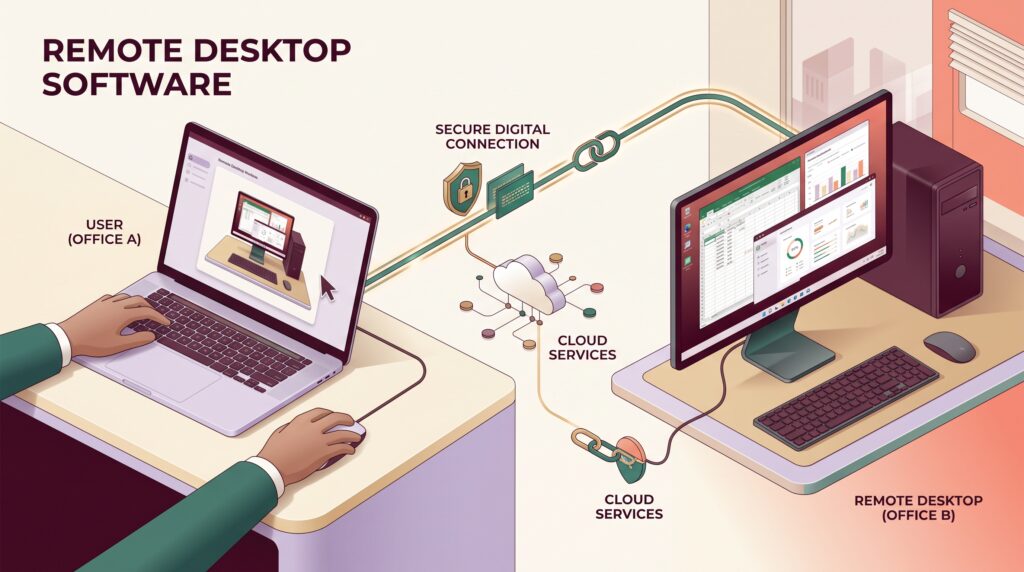
Remote desktop systems generally involve two devices.
The first is the host computer. This is the machine being accessed remotely.
The second is the client device. This could be another computer, tablet, or smartphone used to connect to the host.
When a remote session begins, the software establishes a connection between the client and host. The host sends screen information to the client, while the client’s keyboard, mouse, or touch actions are transmitted back to the host.
A simplified process looks like this:
Client device → Remote connection → Host computer → Screen and input data
Modern solutions can use encryption and authentication mechanisms to protect the connection.
Performance can depend heavily on internet speed, latency, hardware performance, display resolution, and the type of work being performed.
For simple administrative tasks, a remote session may work smoothly even with a modest connection. Activities that require continuous high-quality video or graphics can require considerably more bandwidth and processing power.
Remote Desktop Software vs Remote Support Software
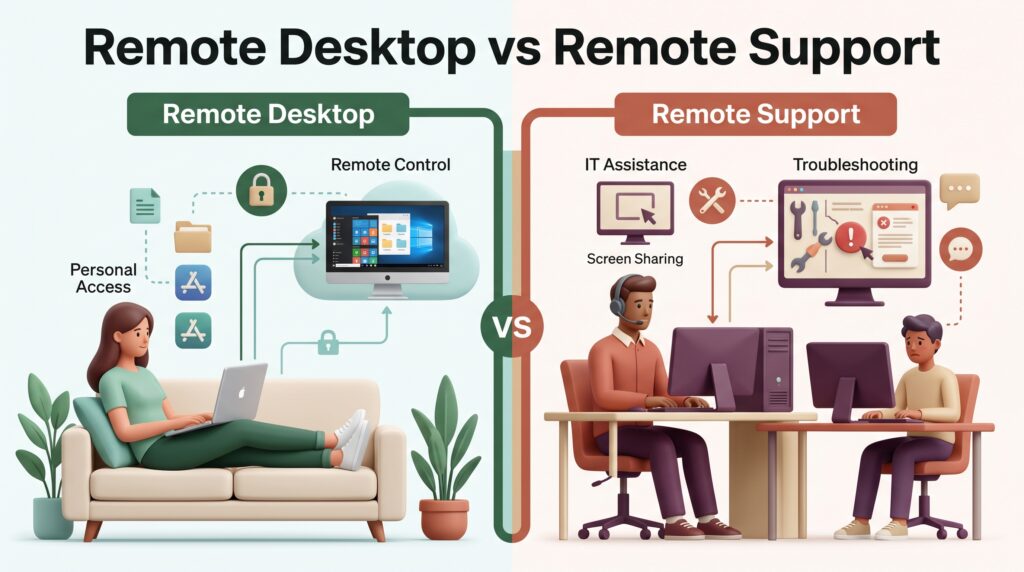
The terms “remote desktop” and “remote support” are sometimes used interchangeably, but they can describe slightly different use cases.
Remote desktop software is often used when a person wants regular access to another computer.
For example, an employee might remotely access their office workstation from home.
Remote Support Software, on the other hand, is commonly designed for technicians who need to help another user troubleshoot a computer.
A support technician may receive temporary access, diagnose a problem, change settings, install software, or demonstrate a solution.
Some modern products combine both capabilities.
Benefits of Remote Desktop Software
Access Computers From Almost Anywhere
One of the biggest advantages is flexibility.
Users can access a compatible computer without being physically present at its location. This can be useful when traveling, working remotely, or managing computers in different offices.
For businesses, remote access can reduce the need for employees or technicians to be physically present for certain tasks.
Convenient IT Support
IT teams can use remote access to troubleshoot computers without visiting every workstation.
A technician may be able to investigate software problems, configure settings, install updates, or help a user understand an application remotely.
This can save time when organizations have employees working across multiple locations.
Support for Remote Work
Remote desktop solutions can also support flexible working arrangements.
An organization may allow employees to connect to their office computers from approved devices. Instead of transferring every file to a personal computer, employees can work within the existing desktop environment.
This approach can also make it easier for organizations to maintain centralized applications and configurations.
Centralized Access to Applications
Some businesses depend on specialized software that is installed on particular computers.
Remote access can allow an authorized employee to use those applications without installing the same software on another device.
This can be particularly useful for organizations that have specialized business applications or workstation-based workflows.
Troubleshooting From a Distance
Remote access can make troubleshooting more convenient.
A technician can see the user’s environment and identify problems directly rather than relying entirely on verbal descriptions.
This can be helpful when a problem is difficult to explain or reproduce.
Common Uses of Remote Desktop Software
Remote Work
Employees can use remote access to connect to office computers while working from home or another approved location.
This can provide access to workplace applications, files, and configurations that may not be available on a personal device.
Organizations should still use appropriate authentication and access policies when implementing remote work systems.
IT Administration
System administrators often need to manage computers and servers remotely.
Remote access can allow administrators to perform maintenance, review settings, install updates, and investigate problems without physically visiting the machine.
For larger environments, remote management can be combined with centralized administration and monitoring tools.
Technical Support
Support teams can use remote sessions to diagnose problems on customer or employee computers.
Instead of asking a user to describe every setting, a technician can inspect the system directly when appropriate authorization has been provided.
Accessing a Personal Computer
Individuals may also use remote access to reach their home computer while traveling.
For example, someone might leave a desktop computer at home and connect to it from a laptop when they need access to a particular file or application.
This can be convenient, but the computer should be configured carefully because exposing remote access to the internet can create security risks.
Education and Training
Remote desktop technology can also support training environments.
Students or employees may remotely access a specific computer environment containing required applications and resources.
This can be useful when the required software is too specialized or expensive to install on every personal device.
Remote Desktop Software and Cloud Computing
Remote desktop technology can work alongside cloud computing.
Traditional remote access may connect directly to a physical computer located in an office or home. Cloud-based environments can instead provide access to virtual machines, hosted desktops, or applications running on remote infrastructure.
This can give organizations more flexibility when deploying desktop environments.
For example, a business could provide employees with access to centrally managed virtual desktop environments rather than assigning every application to a specific physical workstation.
However, cloud-based desktop systems still depend on network connectivity and require careful identity, access, and data-security controls.
Remote Desktop Software and Cybersecurity
Remote access introduces important cybersecurity considerations.
A poorly configured remote access service can become an entry point for attackers. For this reason, organizations should treat remote access as a security-sensitive technology rather than simply a convenience feature.
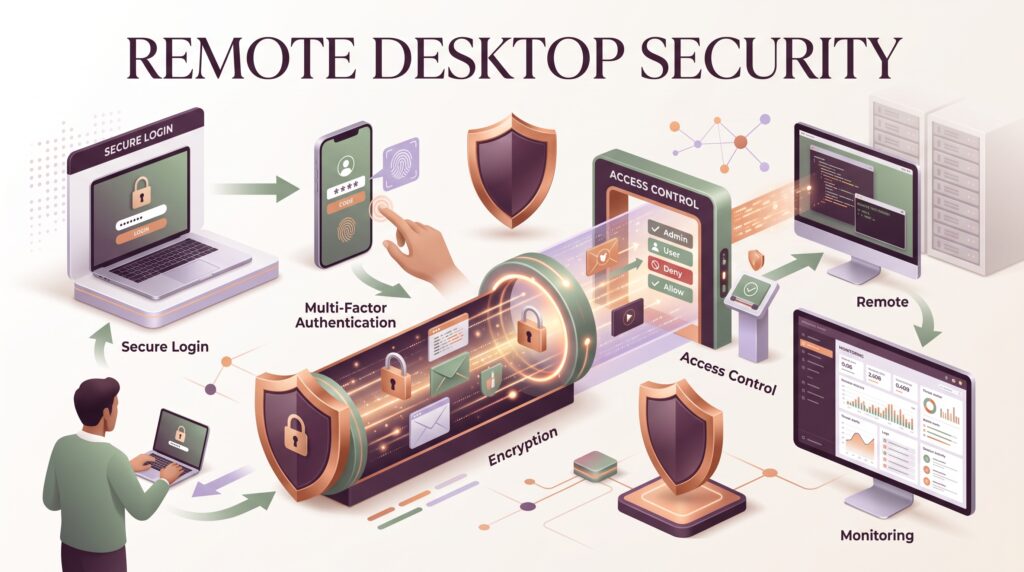
Strong authentication, access restrictions, software updates, encryption, and monitoring can all play an important role. Guidance from CISA recommends secure protocols and strong authentication, including MFA, for remote desktop access.
Remote access should also follow the principle of least privilege. Users should receive only the access they actually need.
For example, an employee who only needs access to one application may not require unrestricted administrative access to an entire computer.
5 Security Tips for Remote Desktop Software
1. Use Strong Authentication
Never rely on a weak or easily guessed password for remote access.
Where supported, enable multi-factor authentication (MFA). This adds another verification step and can make unauthorized access more difficult.
Strong, unique passwords are also important, particularly for administrative accounts.
2. Keep Remote Access Software Updated
Software vulnerabilities can create security problems.
Keep the operating system, remote access application, and related security components updated with available security fixes.
Organizations should also have a process for monitoring important vulnerabilities affecting remote-access infrastructure.
3. Restrict Who Can Connect
Remote access should not automatically be available to everyone.
Use user permissions, access policies, firewall rules, VPNs, or other controls where appropriate.
Restricting access can reduce the number of potential entry points into a system.
4. Avoid Unnecessary Internet Exposure
A remote desktop service that is directly exposed to the public internet can attract automated scanning and attack attempts.
Where possible, organizations should use appropriate network controls and secure access methods rather than unnecessarily exposing internal systems.
The right approach depends on the organization’s infrastructure and security requirements.
5. Monitor Remote Sessions
Businesses should consider monitoring remote access activity.
Login records, unusual connection attempts, account activity, and other security events can help administrators identify suspicious behavior.
Monitoring is particularly important for systems containing sensitive business information.
Limitations of Remote Desktop Software
Remote access is useful, but it is not perfect.
Internet Dependence
Many remote sessions require a stable internet connection. Poor connectivity can cause delays, disconnections, or reduced image quality.
Latency
Distance between the client and host can affect responsiveness. High network latency can make mouse movements, typing, and application interactions feel slower.
Security Risks
Remote access expands the ways a system can be reached. Incorrect configurations, weak passwords, outdated software, or excessive permissions can increase security risks.
Hardware Limitations
The host computer still needs enough processing power to perform the requested tasks.
A remote connection does not automatically make a weak computer more powerful.
Privacy Considerations
Organizations need clear policies regarding remote sessions, monitoring, screen sharing, and access to sensitive information.
Users should understand when remote access is active and who can control the system.
How to Choose Remote Desktop Software
Before choosing a remote access solution, consider what you actually need it to do.
Security Features
Look for strong authentication, encryption, access controls, session management, and security updates.
Platform Support
Check whether the software supports the operating systems and devices you use.
A solution that works well on Windows may have different features or limitations on macOS, Linux, Android, or iOS.
Performance
Consider how the software behaves under different network conditions.
If users need graphics-intensive applications, performance requirements may be significantly higher.
File Transfer
If you need to move files between systems, check whether the software supports secure file transfer and whether administrators can control that feature.
Business Management
Organizations may need centralized user management, permissions, logging, reporting, and administrative controls.
These features can become particularly important as the number of remote users increases.
The Future of Remote Desktop Software
Remote desktop technology is likely to continue evolving alongside cloud infrastructure, virtualization, cybersecurity, and artificial intelligence.
Cloud-hosted desktops can provide organizations with flexible computing environments, while improved network infrastructure can make remote sessions more responsive.
AI may also contribute to remote support workflows. For example, intelligent systems could help technicians identify common problems, summarize system information, or recommend troubleshooting steps.
Security will remain one of the most important considerations.
As organizations increasingly support remote employees and distributed teams, they will need to balance convenient access with strong identity management, device security, and monitoring.
The future of remote desktop technology will likely involve a combination of local computers, cloud platforms, virtualization, and increasingly intelligent support tools.
Final Thoughts
Remote desktop software can make it easier to access computers, support users, manage systems, and maintain flexible working environments.
Its value comes from allowing authorized users to interact with another computer without being physically present.
However, convenience should not come at the expense of security. Strong authentication, restricted access, software updates, monitoring, and sensible network controls are essential when remote access is used.
For individuals and businesses alike, the best remote desktop solution is not necessarily the one with the most features. It is the one that provides the required functionality while fitting the organization’s security, performance, and management requirements.