How to Clear Cache on Android: Easy Steps for 2026
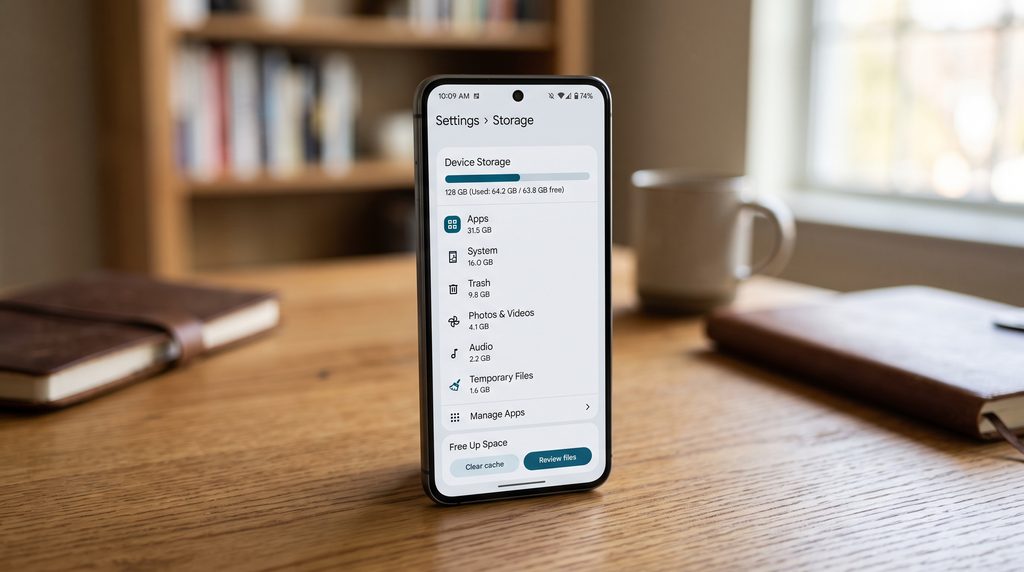
Have you noticed that an app on your Android phone is running slowly, displaying outdated information, or taking up more storage than expected? Temporary files may be part of the problem. Clearing an app’s cache can sometimes resolve these issues and help you manage your phone’s storage. Knowing how to clear cache on Android can help you fix minor app problems and manage temporary files without deleting your personal data.
Learning how to clear cache on Android is useful because apps store temporary information to load content more quickly. Over time, these files can occupy storage space or become outdated. You usually do not need to clear every app’s cache regularly, but knowing where the option is can help when a specific app starts behaving unexpectedly.
In this guide, you will learn how to clear an individual app’s cache, remove cached browser files, understand the difference between clearing cache and clearing data, and avoid common mistakes. If your phone storage remains full after removing photos, read our guide on Phone Storage Still Full After Deleting Photos for more troubleshooting tips.
What Is Cache on an Android Phone?
Cache is temporary data that apps save to make certain tasks faster. For example, a social media app may keep images or other frequently accessed content on your phone so it does not need to download everything again.
A browser may also store website images, scripts, and other files to help pages load more quickly when you visit them again.
Cached files are not usually your original photos, documents, or personal messages. They are generally temporary copies used by apps and websites. However, the exact files an app stores depend on how that app is designed.
Clearing the cache removes these temporary files. The app may recreate them the next time you use it.
How to Clear Cache on Android Apps
Learning how to clear cache on Android apps can help solve common problems without removing your personal files or app settings. The exact menu names can differ between Android versions and phone manufacturers. On many Android phones, you can clear an individual app’s cache through its settings.
Follow these steps:
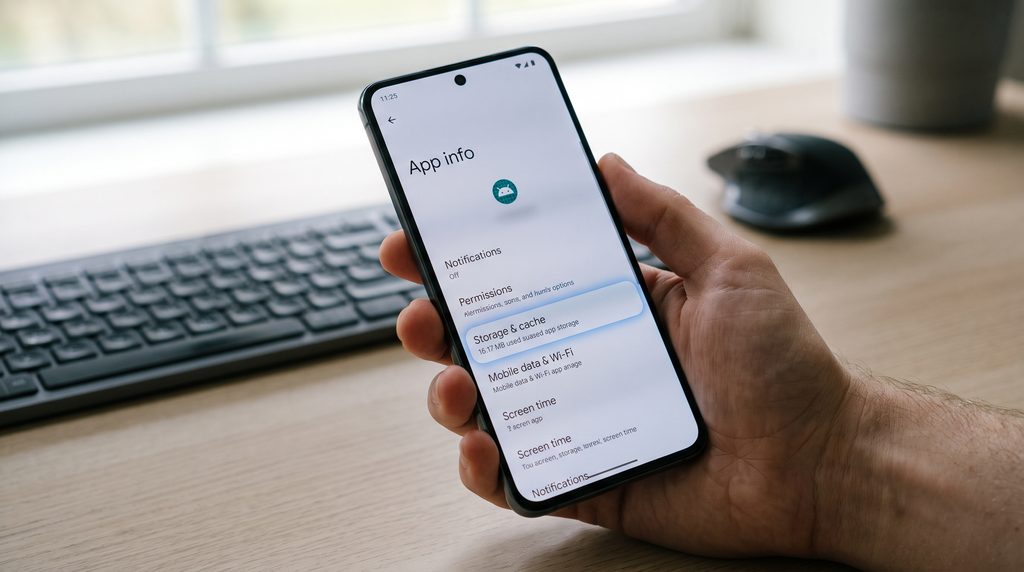
- Open Settings on your Android phone.
- Tap Apps, Apps & Notifications, or a similarly named option.
- Find and select the app you want to troubleshoot.
- Tap Storage, Storage & Cache, or Storage Usage.
- Select Clear cache.
- Open the app again and check whether the problem has improved.
For example, if a shopping app keeps loading incorrectly, you can try clearing its cache rather than clearing the cache of every app on your phone.
Remember that the Clear cache button is different from Clear data or Clear storage. Read the button label carefully before confirming.
How to Clear Cache on Samsung Phones
Samsung Galaxy phones use Samsung’s version of Android, so some menu labels may differ from those on Google Pixel devices.
On many Samsung phones, use this process:
- Open Settings.
- Select Apps.
- Choose the app that is having a problem.
- Tap Storage.
- Select Clear cache at the bottom of the screen, if available.
Wait for the process to finish, then reopen the app.
If your Samsung phone has a different menu layout, use the Settings search feature to search for the app’s name or the word “Storage.”
You do not need to clear the cache for every app just because one app is slow. Start with the app that is causing the issue and check the result before making further changes.
How to Clear Cache in Google Chrome on Android
If websites load incorrectly, old page content keeps appearing, or Chrome is using more storage than expected, clearing its browsing cache may help.
Try these steps in Chrome for Android:
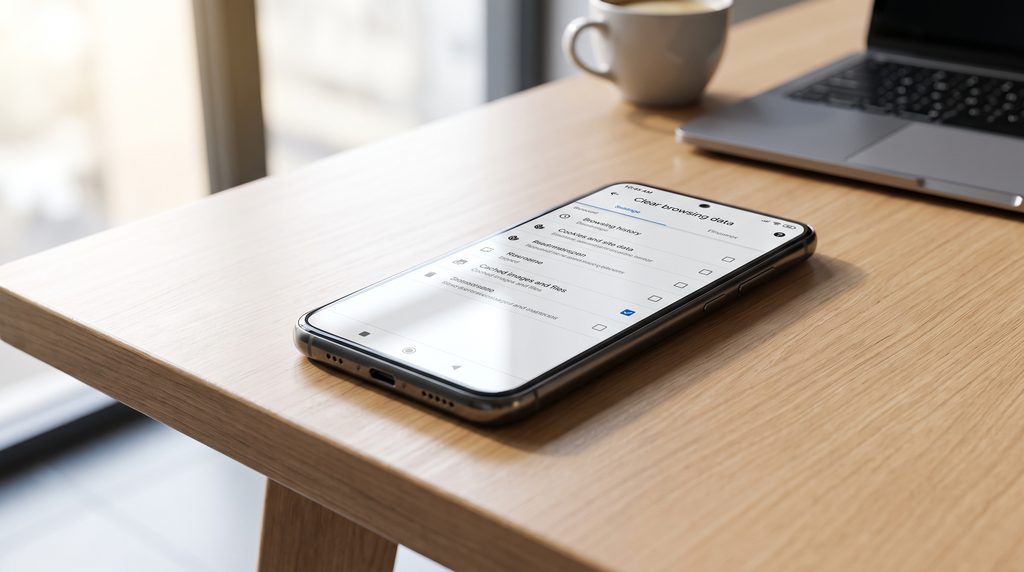
- Open the Chrome browser.
- Tap the three-dot menu.
- Select Delete browsing data.
- Choose an appropriate time range.
- Select cached images and files.
- Review your selection and confirm the deletion.
Chrome’s menu labels may change with app updates, so check the options displayed on your device.
Be careful when choosing additional data types. Browsing history, cookies, and saved passwords are different from cached images and files. Selecting extra options can affect your browsing experience or sign you out of websites.
Does Clearing Cache Free Up Storage?
Yes, clearing an app’s cache can free up some storage space. The amount depends on how much temporary data the app has stored.
An app that stores many images or previews may have a larger cache than a simple calculator app. After you clear it, the storage used by those temporary files may decrease.
However, cache clearing is not a complete solution for every storage problem. Apps may create new cached files as you continue using them, and the amount of space recovered may be small.
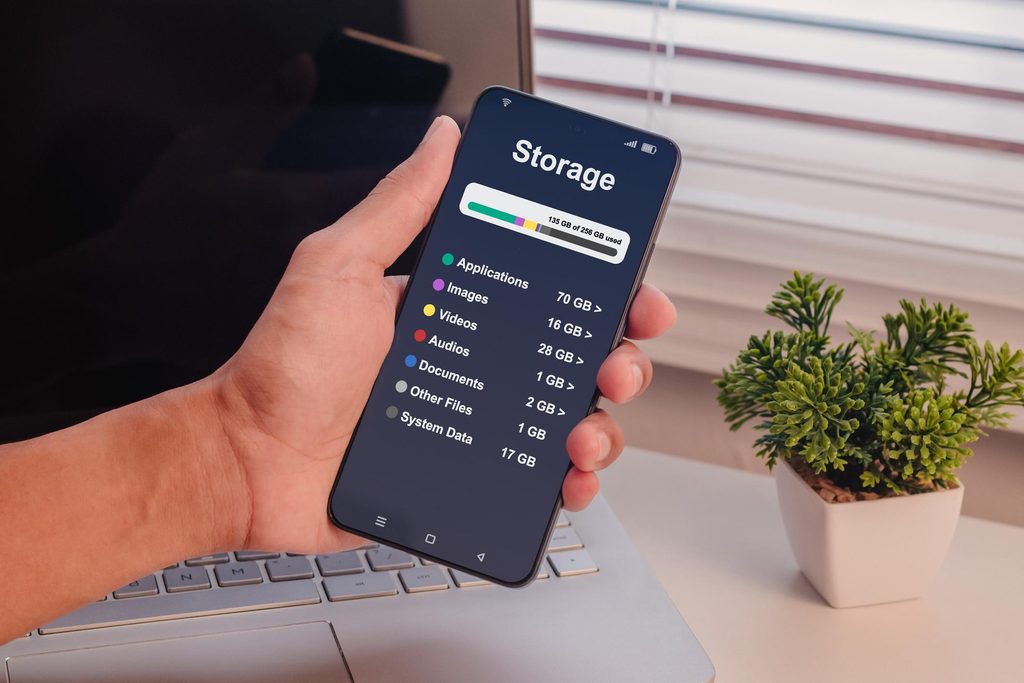
If your phone is still running out of space, check which apps and files are using the most storage. You may also need to remove downloaded videos, unused apps, or other files you no longer need.
If your phone storage remains full after removing photos, read our guide to Phone Storage Still Full After Deleting Photos. For more tips on managing storage, visit the official Android Help guide to free up space. Replace this link with the exact published URL of that article if its permalink is different.
Clear Cache vs. Clear Data: What Is the Difference?
These two options can appear next to each other in Android settings, but they do different things.
| Feature | Clear cache. | Clear data or storage |
|---|---|---|
| Main purpose | Removes temporary files | Resets the app’s stored information |
| Settings | Usually preserved | Maybe reset |
| Login status | Usually remains unchanged | You may need to sign in again. |
| Local app files | Generally not the target | May be removed |
| Best use | Minor loading or display problems | More serious troubleshooting when appropriate |
The exact effects depend on the app. Some apps store important information online, while others keep information locally on your device.
Important: Do not select Clear data or Clear storage just because you want to remove temporary cache files. Clearing app data may delete downloaded content, local settings, or other information. Make sure important information is backed up before resetting an app.
When Should You Clear Android Cache?
If an app keeps freezing or loading slowly, knowing how to clear cache on Android can be a useful troubleshooting step. There is no need to clear every app’s cache every day. Consider trying it when:
- An app repeatedly displays an error or fails to load content.
- An app shows outdated images or other cached content.
- An app is using an unusually large amount of temporary storage.
- A troubleshooting guide for a specific app recommends clearing its cache.
- You have installed an update, and an app is still behaving unexpectedly.
Before clearing cache, you can also try closing and reopening the app, checking your internet connection, or restarting your phone. If the problem continues, check for an app update. You may need to clear cache on Android when an app loads slowly, displays outdated information, or stops working correctly.
For a persistent problem, consult the app developer’s support instructions before removing more data.
What Happens After You Clear Cache?
When you reopen an app, it may take slightly longer to load the first time because some temporary files need to be created or downloaded again.
You might also notice that images or website content load more slowly at first. This is generally expected.
Clearing cache should not normally remove your original photos, contacts, or messages because those are not the same as cached app files. Nevertheless, always check that you have selected the correct option, especially if your phone displays both cache and data controls.
If an app still does not work after clearing cache, the issue may be caused by an outdated app version, a network problem, a service outage, or a bug that requires further troubleshooting. After you clear cache on Android, apps may take slightly longer to load the first time because they need to rebuild temporary files.
Common Mistakes to Avoid
Clearing every app’s cache without a reason
You may remove temporary files that the apps would otherwise reuse. Focus on the app that is causing trouble rather than treating cache clearing as a daily maintenance task.
Confusing cache with personal files
Temporary cache files are different from your downloaded documents, photos, and videos. Review the storage options before deleting anything.
Selecting Clear Data by Mistake
This can reset the app and remove locally stored information. Read the confirmation message before proceeding.
Expecting cache clearing to fix every problem
Cache clearing may help with certain issues, but it cannot fix every app error or make an old phone perform like a new one.
Installing unnecessary cleaning apps
You generally can clear an individual app’s cache through Android settings. Be cautious about third-party cleaning apps that request broad permissions or make exaggerated performance claims.
Frequently Asked Questions
Does clearing cache delete photos on Android?
Clearing an individual app’s cache should not normally delete your original photos stored in your gallery. However, clearing app data or deleting files from a storage manager can have different effects, so check the selected option carefully.
How often should I clear the cache on Android?
There is no fixed schedule. Clear cache when an app has a specific problem or when its temporary files are taking up a noticeable amount of space. Routine clearing is not necessary for every app.
Will clearing cache log me out of apps?
Clearing the cache usually does not sign you out, but app behavior can vary. Clearing app data is more likely to reset the app and require you to sign in again.
Why is my app cache large?
Apps that display many images, videos, webpages, or other content may store more temporary files. The size can change as you use the app.
Is clearing cache safe?
It is generally a safe troubleshooting step when you select Clear cache for the intended app. Be more careful with Clear data or Clear storage, because those options may remove locally stored information.
Does clearing cache make an Android phone faster?
It may help if a particular app has a cache-related problem, but it does not guarantee an overall speed improvement. Slow performance can have several causes, including limited storage, background activity, outdated software, or hardware limitations.
Final Thoughts
Knowing how to clear cache on Android gives you a simple troubleshooting option when an app behaves strangely or uses more temporary storage than expected. You can usually find the option by opening Settings, selecting the app, and visiting its storage settings.
Start with the app that is causing trouble. If you need to clear browser cache, review the browser’s data options carefully. Most importantly, remember that clearing cache is not the same as clearing app data.
Use cache clearing when it solves a specific problem, and avoid deleting information unnecessarily. A careful approach can help you manage storage while keeping your important files and app information safe.