Why Is My Phone Storage Still Full After Deleting Photos? 9 Fixes That Actually Work
You delete hundreds of photos from your phone, remove a few videos, and expect several gigabytes of space to come back. But when you check your storage again, the number barely changes. If you are wondering why your phone storage is still full after deleting photos, the problem may not be the photos you can see in your gallery.
Deleted files can remain in a trash or recently deleted folder, while apps, downloads, cached data, offline media, and system files can continue using storage in the background. On some phones, cloud backups can also make the situation confusing because removing a local copy does not necessarily mean the same thing as deleting the cloud version.
The good news is that you usually do not need to delete everything on your phone. The better approach is to find exactly what is consuming your storage and clean the largest, safest categories first. If your phone storage is still full after deleting photos, the problem may be caused by recently deleted files, cached data, or hidden storage.
Why Is My Phone Storage Still Full After Deleting Photos?
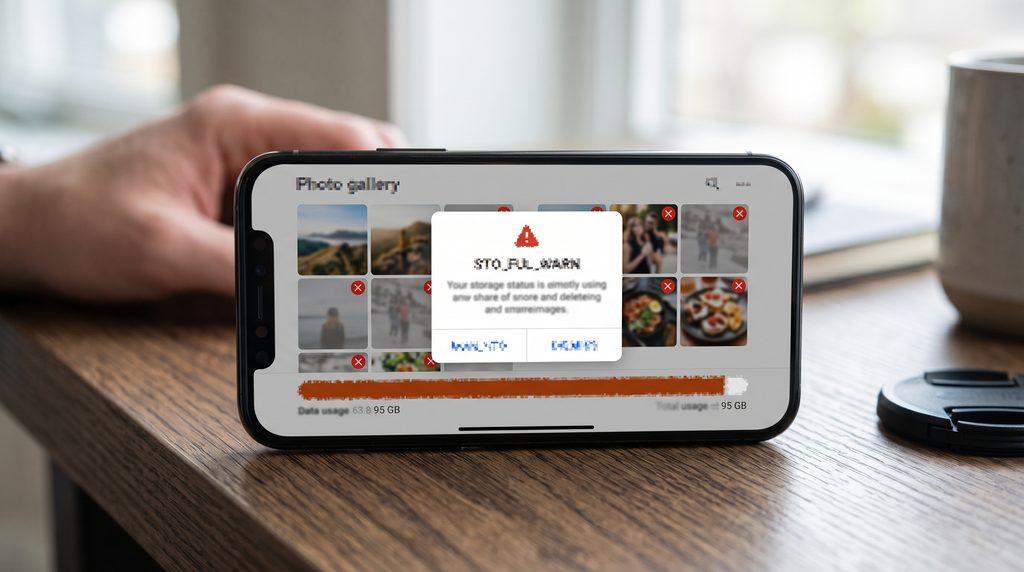
Deleting photos does not guarantee that your phone immediately releases all the space you expected. Phone storage still full after deleting photos is usually caused by files that remain in trash folders or by other types of data taking up space.
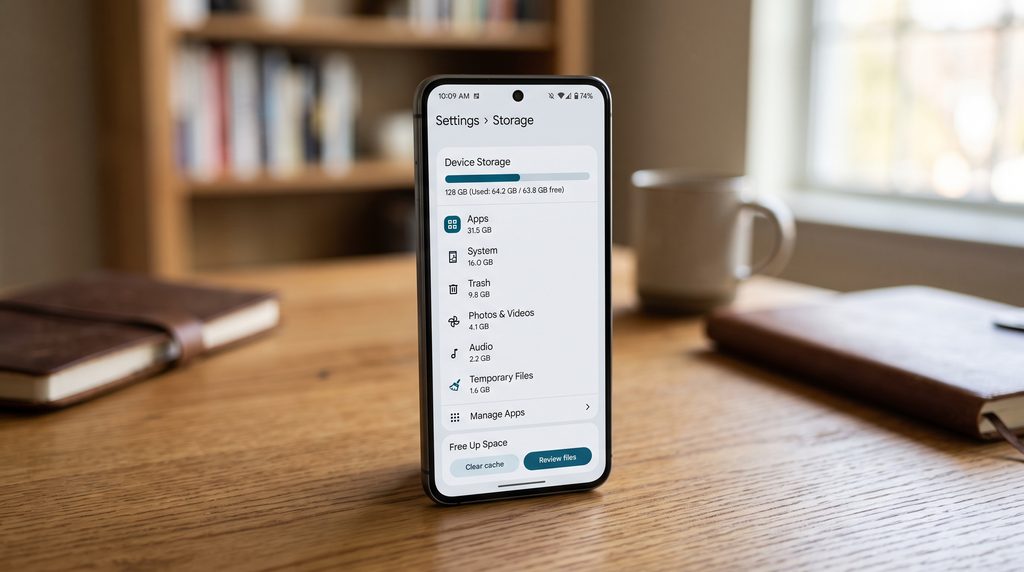
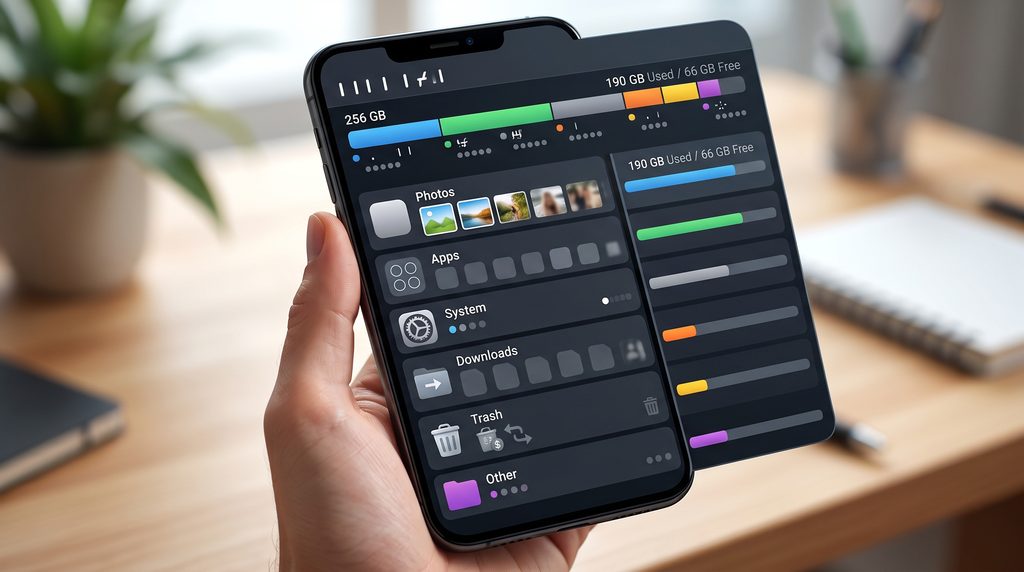
On Android, Google recommends checking Settings > Storage to see which categories are consuming space. Depending on the device, the available categories and names can vary.
On an iPhone, you can check storage through Settings > General > iPhone Storage, where apps and other categories are listed according to how much space they use. Apple also notes that deleted photos can remain in Recently Deleted for 30 days.
So before deleting even more files, start by identifying the actual storage problem.
1. Empty the Recently Deleted or Trash Folder
This is one of the easiest things to overlook. Checking the Recently Deleted folder is one of the first steps when your Phone Storage Still Full After Deleting Photos.
When you delete a photo, many phones do not immediately erase it permanently. Instead, the photo is moved to a trash or recently deleted folder so that you can recover it if you change your mind.
For example, Google Photos keeps deleted backed-up photos and videos in the trash for 30 days before permanent deletion. Apple similarly keeps deleted photos in Recently Deleted for 30 days.
If you have deleted hundreds of large videos, this temporary folder can still occupy significant storage.
Before emptying it, make sure you do not need anything inside it. Checking the trash folder is one of the first things to do when you experience Phone Storage Still Full After Deleting Photos.
2. Check Which Apps Are Using the Most Storage
Photos may not actually be your biggest storage problem.
Large apps can accumulate downloaded files, media, documents, and other local data over time. Social media and messaging apps are particularly worth checking because they can store large amounts of images and videos.
Open your phone’s storage settings and sort through the apps consuming the most space.
Instead of deleting apps randomly, look at the biggest ones first.
If you no longer use an application, uninstalling it can recover more space than deleting dozens of small photos.
On Android, Google also provides options for archiving unused apps on supported devices, which can free space while retaining personal app data. Large apps can also explain why you experience Phone Storage Still Full After Deleting Photos even after removing pictures.
3. Clear App Cache Carefully
Cached files are temporary data stored by applications to make certain operations faster. Cached files can also explain why your phone storage is still full after deleting photos even when your gallery appears much smaller.
Over time, some apps can accumulate a considerable amount of cached data.
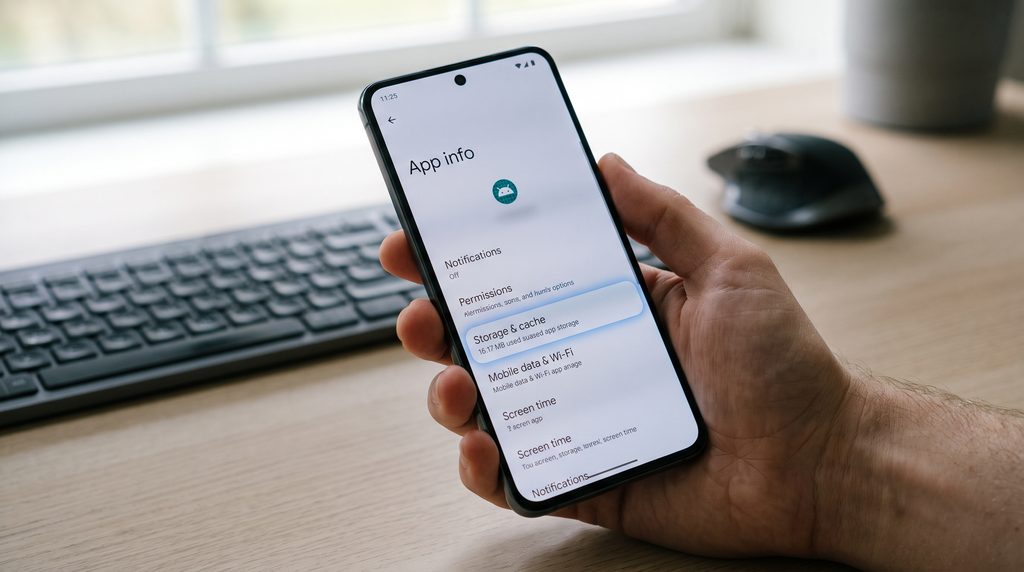
Android provides an option to clear an app’s cache, although the exact steps can differ between phone manufacturers. Google explains that clearing the cache removes temporary data, while clearing an app’s storage can permanently remove its app data.
That distinction is important.
Clearing the cache and clearing storage/data are not the same thing.
If you are trying to free space, do not automatically choose the option that deletes all app data. Check what each option does on your particular device first.
4. Check WhatsApp, Telegram, and Other Messaging Media
Messaging apps can quietly become major storage consumers.
A single group chat can accumulate thousands of photos, videos, voice recordings, documents, stickers, and other files.
You may delete photos from your phone’s gallery and still have copies stored inside messaging app folders.
Open the storage management section of the messaging apps you use most frequently and look for large files or frequently forwarded media.
Instead of deleting entire conversations, consider removing only unnecessary videos and duplicate files.
This can free significant space without losing important messages.
5. Look at Your Downloads Folder
Your Downloads folder is another common source of hidden storage usage.
Old PDFs, installation files, compressed folders, images, videos, and documents can remain on your phone long after you have finished using them.
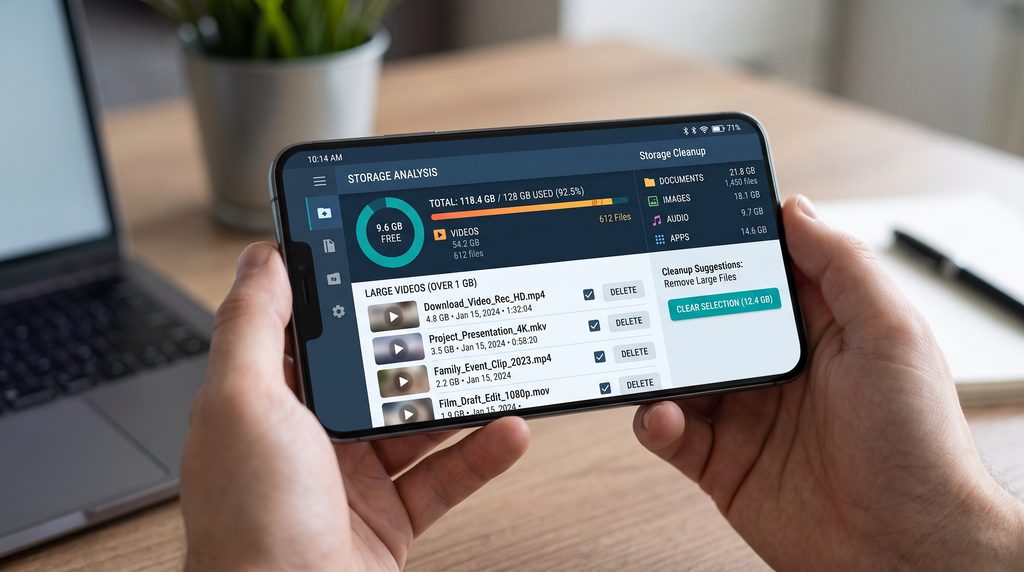
On Android, the Files app can be used to browse file categories and delete files you no longer need.
Sort files by size if your file manager supports it.
A few large videos or archive files can take up more space than hundreds of small documents.
6. Check Offline Downloads
Streaming services are convenient, but downloaded content can consume a surprising amount of storage.
Check apps that allow offline downloads, including:
- Video streaming apps
- Music apps
- Podcast apps
- Navigation apps
- Reading apps
- Cloud-storage apps
If you downloaded movies, playlists, maps, podcasts, or documents for offline use months ago, you may no longer need them.
Delete only content you are comfortable downloading again later.
7. Check Whether Your Photos Are Actually Backed Up
Cloud storage can make photo cleanup confusing.
For example, Google Photos allows users to remove backed-up copies from the device while keeping the backed-up versions available in Google Photos. Google recommends making sure photos are safely backed up before using its device storage cleanup feature.
This distinction matters because phone storage and cloud storage are not the same thing.
You might have a large photo library stored in your Google Account or iCloud, while your phone also contains local copies.
Before deleting important photos, confirm that the backup completed successfully. Before deleting a large photo library, review Google Photos storage management to understand which files are backed up and which are still taking space on your device.
Never assume that a photo is safely backed up simply because you can see it in a cloud app. Proper backups can make it easier to manage phone storage still full after deleting photos without accidentally losing important memories.
8. Investigate System, Other, or Temporary Storage
Sometimes the largest storage category is not something obvious like photos or videos.
Depending on your phone, you may see categories such as
- System
- Other
- Temporary files
- Cached data
- Documents and data
These categories can contain operating-system files, application data, caches, logs, and other information required by the device or apps.
Do not start deleting system files manually just because the category looks large.
Instead, use the storage-management tools built into the phone. Android provides storage cleanup options and recommends checking categories before removing files.
If the system category seems unusually large and does not decrease after normal cleanup and a restart, check your phone manufacturer’s support documentation before attempting advanced solutions.
9. Restart the Phone and Check Storage Again
This sounds simple, but it is worth doing after a large cleanup.
Storage information may not always appear to change immediately after deleting large amounts of content.
After completing your cleanup:
- Empty unnecessary trash folders.
- Remove unwanted large files.
- Clear appropriate app caches.
- Delete unused downloads.
- Restart the phone.
- Check the storage screen again.
Do not expect the storage number to change dramatically after every individual deletion. What matters is the overall difference after the cleanup process is complete.
Android vs iPhone: Why Storage Can Look Different
The exact storage categories and cleanup options depend on the operating system and device.
Android phones commonly provide a Storage section where users can inspect categories and free up space. Google also offers tools for backed-up photos, downloads, unused apps, and cached data.
iPhones provide a storage overview through Settings > General > iPhone Storage. Apple also uses a Recently Deleted album for photos and videos, where deleted items can remain for up to 30 days.
Because manufacturers and operating-system versions differ, avoid following instructions designed for another phone model if the menus do not match.
What You Should Not Delete to Free Storage
When your phone is almost full, it can be tempting to delete anything that looks unfamiliar.
That is not always safe.
Avoid manually deleting:
- Unknown system files
- Operating-system folders
- Files you cannot identify
- Important application data
- Photos that have not been backed up
- Work or school documents you still need
A few gigabytes of free space are not worth accidentally losing important information.
If you are unsure about a file, research what it does before deleting it.
A Safer Order for Cleaning Phone Storage
If you want to free space without spending hours examining every file, use this order:
First: Empty unnecessary trash or recently deleted items.
Second: Remove large videos and files you no longer need.
Third: Review messaging app media.
Fourth: Delete unused downloads and offline content.
Fifth: Uninstall unused applications.
Sixth: Clear appropriate app caches.
Seventh: Review the system or other storage if the problem remains.
This approach focuses on high-impact areas before you consider more complicated solutions.

When Should You Consider Cloud Storage?
Cloud storage can help when your phone contains a large collection of photos and videos that you want to keep but do not need stored locally. Cloud storage can also affect how your photos and files are managed. Learn more about [Cloud Computing] in our detailed guide.
However, cloud storage is not automatically a complete solution. Cloud backups may affect what you see, but they do not always explain why your Phone Storage Still Full After Deleting Photos.
You need to understand:
- What is stored on the phone
- What has been backed up
- How much cloud storage is available
- What happens when you delete a file
- Whether the cloud service synchronizes deletions across devices
For example, deleting content from Google Photos can affect backed-up copies depending on how the deletion is performed and which devices have backup enabled.
Always check the service’s current instructions before performing a large cleanup.
Final Thoughts
If your phone storage is still full after deleting photos, do not immediately assume that something is broken. Phone Storage Still Full After deleting photos, it does not always mean that your deleted pictures are still taking up all the available space.
The missing space may be sitting in a trash folder, app data, messaging media, downloads, offline content, or system-related storage.
Start by checking your phone’s storage breakdown. Then clean the largest safe categories one at a time.
Most importantly, verify your photo backups before permanently deleting important memories.
A few minutes spent identifying what is actually using your storage can be much more effective than repeatedly deleting random files.
Frequently Asked Questions
Why is my phone storage still full after deleting photos?
Deleted photos may remain in a trash or recently deleted folder, while apps, downloads, cached files, messaging media, and system data can continue using storage.
Does deleting photos immediately free phone storage?
Not always. Some devices and photo services keep deleted items temporarily in trash or Recently Deleted. Google Photos and iPhone Photos can retain deleted content for up to 30 days under their current policies.
Why does WhatsApp use so much storage?
WhatsApp and similar messaging apps can accumulate photos, videos, documents, voice recordings, and other media over time. Reviewing large media files can often recover more space than deleting individual gallery photos.
Is clearing the cache safe?
Clearing an app’s cache generally removes temporary data, but the exact behavior varies by app. Clearing app storage or data is different and can remove locally stored app information, so check the option carefully before using it.
Should I delete system files to get more storage?
No. Do not manually delete unfamiliar system files. Use your phone’s built-in storage-management tools instead.
Can cloud storage completely solve a full-phone problem?
Cloud storage can reduce the amount of photos and videos stored locally, but it does not automatically remove every type of local data. Apps, downloads, caches, and offline content can still consume phone storage.