How to Clear Cache on Android: 7 Easy Ways to Free Up Space
How to Clear Cache on Android is a simple way to remove temporary app files and troubleshoot certain storage or performance problems. These files are commonly known as caches, and many Android apps create them during normal use. This guide explains how to clear the cache on Android and when clearing temporary files can actually help.
Learning how to clear the cache on Android can be useful when you want to troubleshoot a particular app without immediately deleting the application itself. The process is usually simple, although the names and locations of settings can differ between Samsung, Google Pixel, Xiaomi, OnePlus, and other Android phones.
Before deleting anything, it is important to understand the difference between cached files and your actual app data. Learning how to clear the cache on Android can save time when a single app starts behaving unexpectedly.
What Does Android Cache Actually Do?
An app does not always need to download or recreate every temporary file from scratch. Instead, it can keep certain pieces of information temporarily on the phone.
For example, a social media application might save image previews, while a browser can store elements from websites you have visited. A streaming application may also create temporary files while you use it.
This information can make an app feel faster during normal use. However, cached data can grow over time.
Clearing it gives the application a chance to rebuild those temporary files when they are needed. Knowing how to clear the cache on Android is useful when an individual app starts using too much temporary storage.
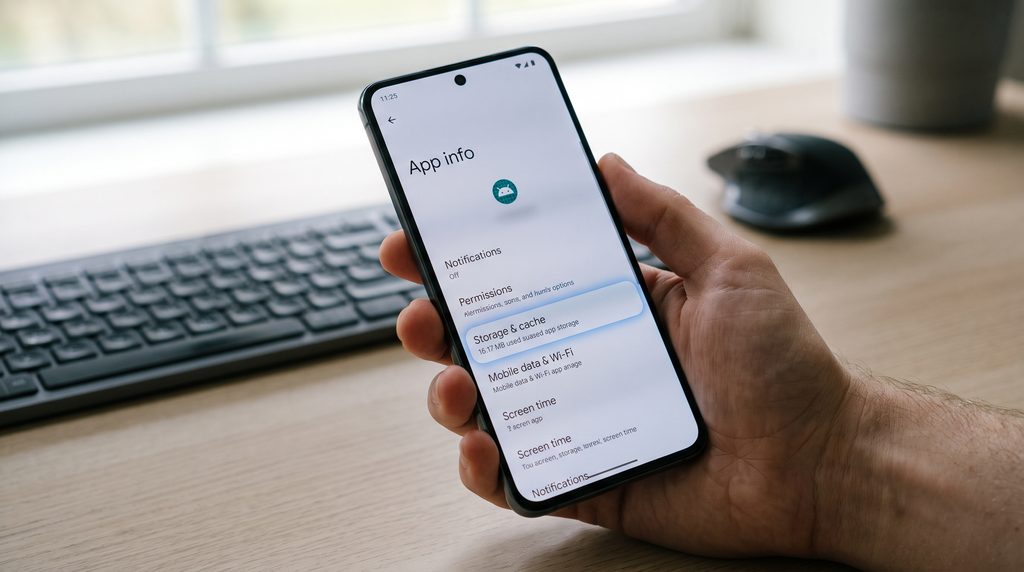
How to Clear Cache on Android Step by Step
Before starting, make sure you know how to clear the cache on Android without selecting the option that removes your stored app data. The quickest method is normally available through the phone’s Settings menu.
Try these steps:
- Open Settings on your Android phone.
- Select Apps, Applications, or a similar option.
- Find the application you want to troubleshoot.
- Open its app info page.
- Choose Storage, Storage & Cache, or a similar option.
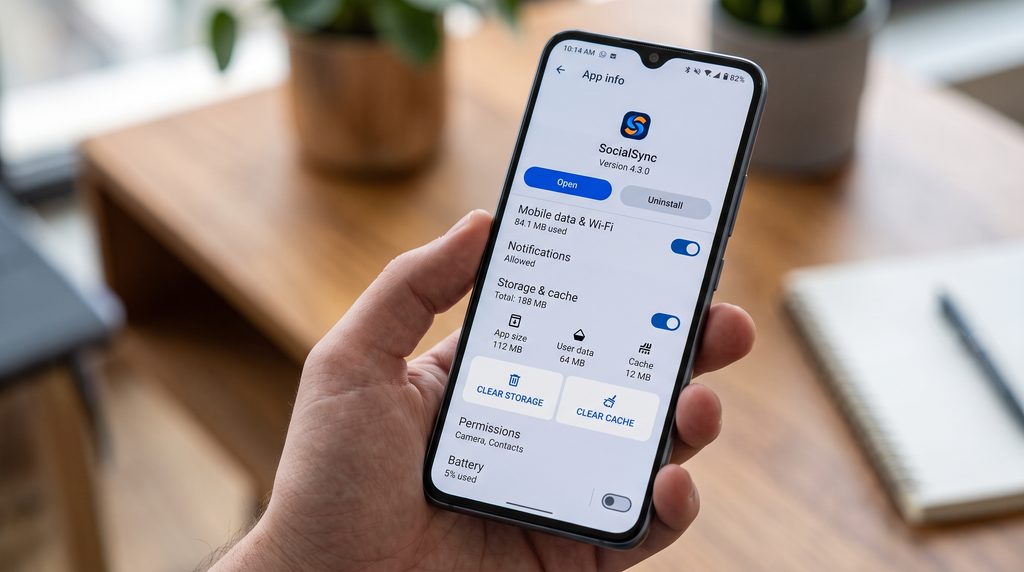
- Tap Clear Cache.
- Reopen the application.
The wording can be different depending on the manufacturer and Android version, so do not worry if your menu looks slightly different.
The key option you are looking for is Clear Cache, not Clear Storage or Clear Data. Google’s official Android Help guide explains how to manage storage and clear temporary files on Android devices.
1. Start With the App Causing the Problem
You do not necessarily need to clear cached files from every application on your phone.
If Instagram, Chrome, YouTube, or another app is suddenly acting strangely, begin with that particular application.
For instance, if an app repeatedly freezes while other apps work normally, clearing its temporary cache can be a sensible troubleshooting step.
After clearing it, open the app again and see whether the problem has disappeared.
This targeted approach is easier than changing settings across the entire phone.
2. Check Your Browser’s Temporary Files
Web browsers can accumulate temporary information because you visit many different websites.
If pages are loading incorrectly or a website seems stuck showing old information, the browser cache could be worth checking.
Open your browser’s application settings and look for its storage options. Select the cache-related option rather than deleting everything unless you specifically need to reset the browser.
Remember that clearing cache and deleting browsing information are different actions. Read the option carefully before confirming.
3. Find Apps Taking Up Unnecessary Space
Sometimes the easiest way to identify a storage problem is to look at your installed apps.
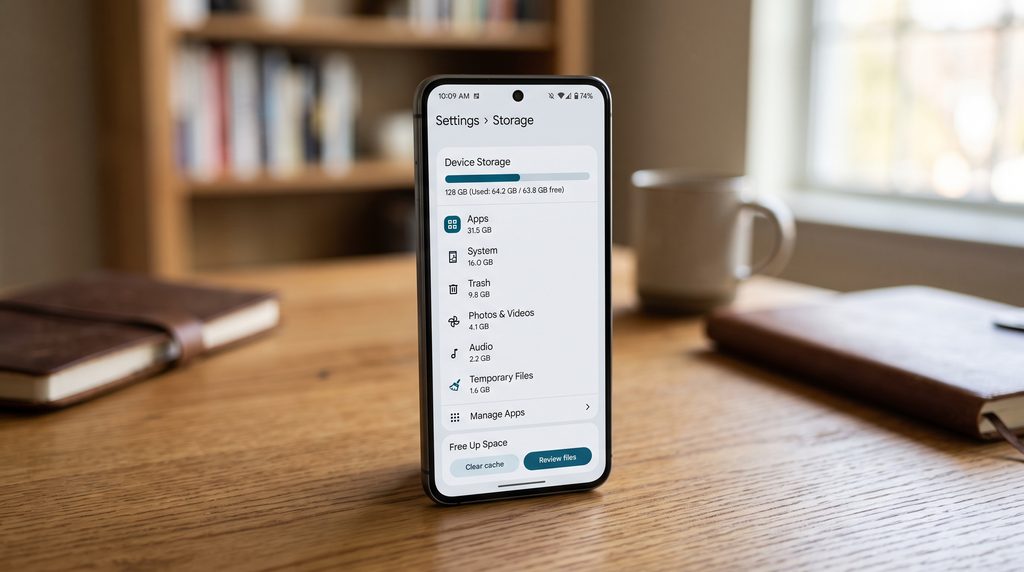
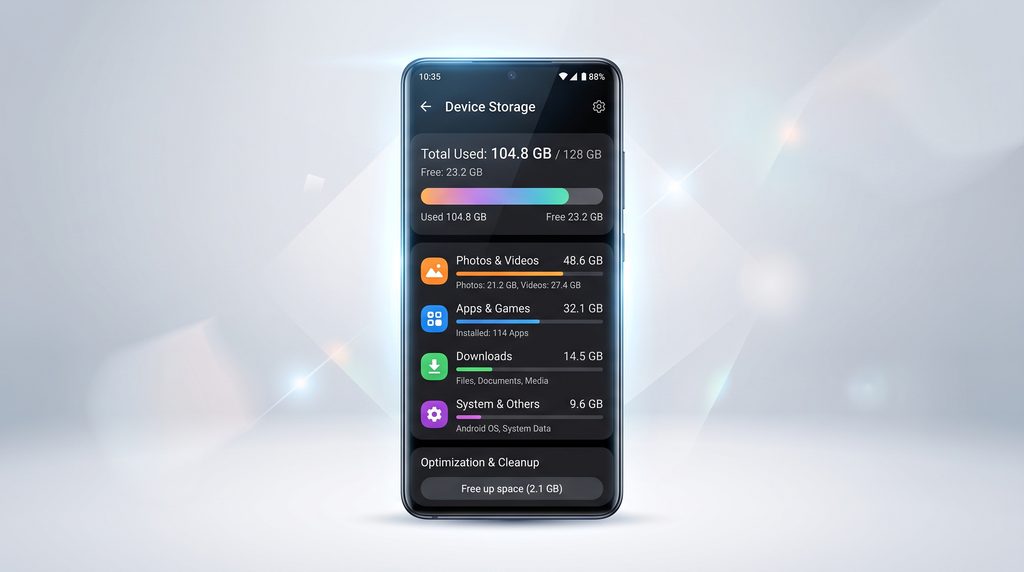
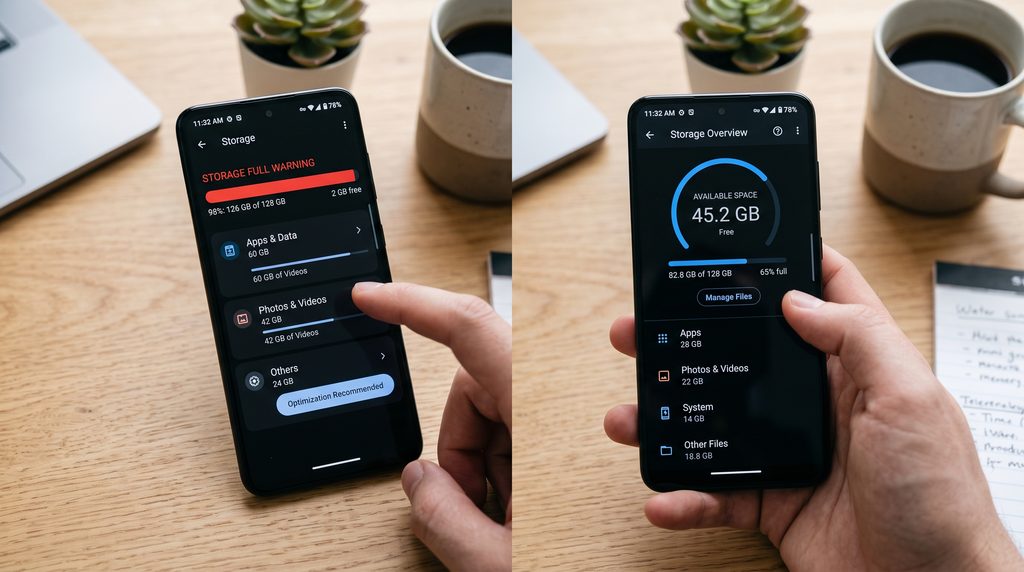
Go to your phone’s Settings and search for Storage. Depending on the Android version, you may see a breakdown showing applications, images, videos, documents, and other categories.
If one app is using considerably more space than expected, open its information page and inspect its storage details.
This can tell you whether the app’s temporary files are worth clearing or whether another type of data is responsible for the storage usage.
4. Don’t Confuse Clear Cache With Clear Data
This is one of the most important things to understand before changing an app’s storage settings.
Clear Cache is intended for temporary files.
Clear data or clear storage is much more significant. It can remove information stored by the application and may effectively return it to a fresh state.
For some apps, that can mean losing downloaded content, settings, login information, or other locally stored information.
So, if your goal is simply to remove temporary files, choose the cache option first.
5. Clean Up Downloads and Large Files
If your phone is nearly full, cache may not actually be the biggest problem.
Open your file manager and inspect the Downloads folder. Old PDFs, videos, installation packages, images, and other files can remain there for months.
You may also have large videos saved from messaging applications or social media.
Before deleting anything, make sure you no longer need the file or have another copy stored safely.
A few large unused files can sometimes free more space than clearing the cache of several applications.
6. Remove Apps You No Longer Use
Unused applications can quietly occupy valuable storage.
Games are a common example because some of them require large downloads in addition to the original application.
Go through your app list and ask whether you actually use each application. If an app has not been used for a long time and you no longer need it, uninstalling it may provide a more meaningful storage improvement than clearing its cache.
Some Android phones also provide options for automatically managing unused applications, depending on the device and software version.
7. Restart the Phone After Troubleshooting
A restart is a simple step that is easy to overlook.
After clearing the cache from a troublesome application, restart your phone and test the app again.
A reboot can help the operating system and applications start fresh. It also gives you an opportunity to check whether the storage figure has changed after temporary files have been removed.
If the original issue remains, look beyond cache instead of repeatedly clearing it.
When Is Clearing Cache Worth Trying?
There is no universal rule saying that Android users should clear the cache every week or every month.
It makes more sense to consider it when a particular application:
- Has started crashing frequently
- Loads content incorrectly
- Feels unusually slow
- Shows outdated information
- Has accumulated a large temporary cache
- Behaves differently after an update
If your phone is working normally, constantly clearing the application cache is usually unnecessary.
Apps may simply create those temporary files again as you continue using them. Knowing how to clear the cache on Android is especially useful when the problem appears to be limited to one application.
Can Clearing Cache Make Your Phone Faster?
It can help in certain situations, but it is not a guaranteed speed boost.
Suppose an application has accumulated problematic temporary files. Removing them may resolve a specific issue and make the application behave normally again.
But if the real cause is limited RAM, an old battery, insufficient storage, an outdated application, or demanding background processes, clearing cache alone will not solve the problem.
That is why it is better to treat cache clearing as a troubleshooting technique rather than a magic performance button. One reason people search for “How to Clear Cache on Android” is to solve app performance problems.
What If Your Storage Is Still Full?
If you clear several caches and barely recover any space, the cache probably was not the main reason for the storage problem.
Check these areas instead:
Photos and Videos
High-resolution photos and especially long videos can consume large amounts of storage. If your phone still shows low storage after deleting pictures, read our guide on Phone Storage Still Full After Deleting Photos.
Review your gallery and remove files you genuinely no longer need. If you use a cloud backup service, confirm that important files are safely backed up before deleting local copies.
Downloads
Old downloads are easy to forget. Look through your file manager and sort through large or unnecessary files.
Messaging Apps
Images, videos, voice recordings, and documents received through messaging applications can accumulate surprisingly quickly.
Large Applications
Open the storage section of your phone and identify applications that occupy substantial space.
Offline Content
Music, movies, maps, podcasts, and other offline downloads can remain on your phone even after you have stopped using them.
Does Clearing Cache Delete Photos?
Normally, clearing the cache of an individual application does not mean deleting the photos stored in your phone’s gallery.
However, you should always check which option you are selecting. Clear Cache and Clear Storage/Data have different purposes.
If you are unsure about a particular screen, stop before confirming and read the description shown by your phone. If you are searching for “How to Clear Cache on Android,” the first thing to remember is that cache clearing is mainly a troubleshooting step.
How Often Should You Clear Android Cache?
There is no need to make cache clearing part of a strict maintenance routine.
A better approach is to do it when there is a practical reason.
For example, if an application suddenly develops a problem, check its cache. If your phone has limited storage, inspect the complete storage breakdown before assuming that cache is responsible.
This prevents unnecessary maintenance and helps you focus on the files actually consuming your space.
A Simple Android Storage Checklist
Before deleting anything, work through this short checklist:
Step 1: Open Settings and inspect storage usage.
Step 2: Identify applications using unusually large amounts of space.
Step 3: Clear cache for apps that are experiencing problems.
Step 4: Review downloads and large files.
Step 5: Remove applications you no longer use.
Step 6: Check photos, videos, and offline media.
Step 7: Restart the phone and check whether the situation has improved.
This method gives you a clearer picture of what is actually consuming your storage. These steps make How to Clear Cache on Android easier to follow without deleting important files.
Final Thoughts
Knowing how to clear the cache on Android is useful when an application becomes slow, unstable, or starts behaving unexpectedly. The process normally involves opening an app’s information page through Settings and selecting Clear Cache. Understanding how to clear the cache on Android gives you a simple way to troubleshoot certain app and storage issues.
However, the cache should not automatically be blamed whenever an Android phone runs out of space. Photos, videos, downloads, large applications, and offline content can take up considerably more room.
Start with the application causing the problem, use the cache option carefully, and inspect your phone’s wider storage usage when you need to recover more space. Once you understand how to clear the cache on Android, you can deal with many common app-storage problems more confidently.
The safest approach is simple: check what is taking up storage first, then remove only what you no longer need.